In-cluster application communication
In-cluster communication offers several advantages over external connections, including reduced network latency, simplified service discovery through Kubernetes DNS, and enhanced security through network isolation.
This topic describes the connection options, port configurations, and network architecture for applications communicating with Mission Control database clusters within the same Kubernetes cluster.
Connection options
For applications running in the same Kubernetes cluster as your Mission Control database, you can connect using the Data API or your own Apache Cassandra drivers:
- Use the Data API
-
Access your database through HTTP without configuring Cassandra drivers. You can configure a Data API deployment using
DataAPIConnectivityobjects or in the UI. - Use Cassandra drivers
-
Connect directly to database nodes using the native CQL protocol for maximum performance and full CQL feature access. You can use Kubernetes services for in-cluster access.
When choosing a connection method, consider factors like performance requirements, protocol support, deployment location, and existing infrastructure.
Retrieve database credentials
Before connecting to your database, retrieve the superuser credentials from the Kubernetes secret. These credentials are required for both Data API and CQL connections.
-
Retrieve the superuser username:
kubectl get secret CLUSTER_NAME-superuser -o jsonpath='{.data.username}' | base64 --decode -
Retrieve the superuser password:
kubectl get secret CLUSTER_NAME-superuser -o jsonpath='{.data.password}' | base64 --decode
Replace CLUSTER_NAME with your database cluster name.
For information about overriding default credentials or rotating credentials, see Override default credentials and Rotate credentials.
Connect using the Data API
Configure your application to connect to the Data API gateway endpoint. Each method has specific configuration options, such as service types, ports, and authentication. For detailed Data API and client reference material, see Get started with the Data API.
The Data API gateway connects to database nodes using the CQL protocol internally. You don’t need to configure Cassandra drivers in your application when using the Data API.
Initial configuration
-
Get the Data API endpoint from the Mission Control UI Connect page.
-
For in-cluster communication, choose the
ClusterIPservice.Use
CLUSTER_NAME-DATACENTER_NAME-data-api-cipfor in-cluster access. -
Retrieve the superuser credentials from the Kubernetes secret.
-
Use your Data API endpoint, superuser username, and superuser password to make HTTP requests to the Data API.
For more information, see Get started with the Data API.
In-cluster connection guidelines
Follow these guidelines when connecting to the Data API from applications running in the same Kubernetes cluster:
-
When connecting from within the cluster, use the fully qualified domain name (FQDN) format for the service name:
CLUSTER_NAME-DATACENTER_NAME-data-api-cip.PROJECT_SLUG.svc.cluster.localReplace the following:
-
CLUSTER_NAME: The database cluster name. -
DATACENTER_NAME: The datacenter name. -
PROJECT_SLUG: The project slug (namespace).You can find the project slug in the Mission Control UI breadcrumbs next to the cluster name on the cluster details page.
-
Use the
ClusterIPservice name format for reliable in-cluster connectivity -
Use the service FQDN for automatic service discovery
Connect using CQL native protocol
You can connect directly to database nodes using the CQL native protocol on port 9042. This method provides full access to CQL features.
-
Find your datacenter’s CQL Service name:
kubectl get services -n PROJECT_SLUG -l app=cassandraReplace
PROJECT_SLUGwith your project namespace.The service name follows the pattern
CLUSTER_NAME-DATACENTER_NAME-service. -
Configure your Cassandra driver to connect to the service:
-
Service name:
CLUSTER_NAME-DATACENTER_NAME-service.PROJECT_SLUG.svc.cluster.local -
Port:
9042 -
Credentials: Retrieve the superuser credentials from the Kubernetes secret
-
-
Test the connection from your pod:
kubectl exec -it POD_NAME -- telnet SERVICE_NAME 9042Replace the following:
-
POD_NAME: The name of your pod -
SERVICE_NAME: The name of your service
-
Configure your Cassandra driver
To configure your Cassandra driver for in-cluster connections, do the following:
-
Retrieve the superuser credentials from the Kubernetes secret.
-
Configure your Cassandra driver with the service FQDN:
CLUSTER_NAME-DATACENTER_NAME-service.PROJECT_SLUG.svc.cluster.local:9042 -
Set the local datacenter name for optimal routing.
-
Configure the SSL context if you enabled client-to-node encryption. For more information, see Client to node.
For detailed driver-specific connection examples and best practices, see the documentation for your preferred driver. For supported drivers, see Get started with Cassandra drivers for HCD and Get started with Cassandra drivers for DSE.
Override default credentials
You can override the default username and password by setting the spec.k8ssandra.cassandra.superuserSecretRef property in the MissionControlCluster custom resource (CR) to reference an existing secret.
For more information, see Configure authentication.
Rotate credentials
Rotate superuser credentials by updating the corresponding Kubernetes secret. Mission Control automatically propagates the changes to the database cluster.
Establish a credential rotation schedule to minimize security risks from compromised credentials. Implement automated credential rotation using tools like HashiCorp Vault or Kubernetes External Secrets Operator.
For more information, see Secure Mission Control infrastructure.
Architecture diagrams
The following diagrams show the network traffic flows and port configurations for Mission Control deployments. Understanding these traffic patterns helps you configure security policies, troubleshoot connectivity issues, and optimize network performance.
Application communication flow
This diagram shows the complete application communication architecture, including all connection methods and how they interact with the database cluster:
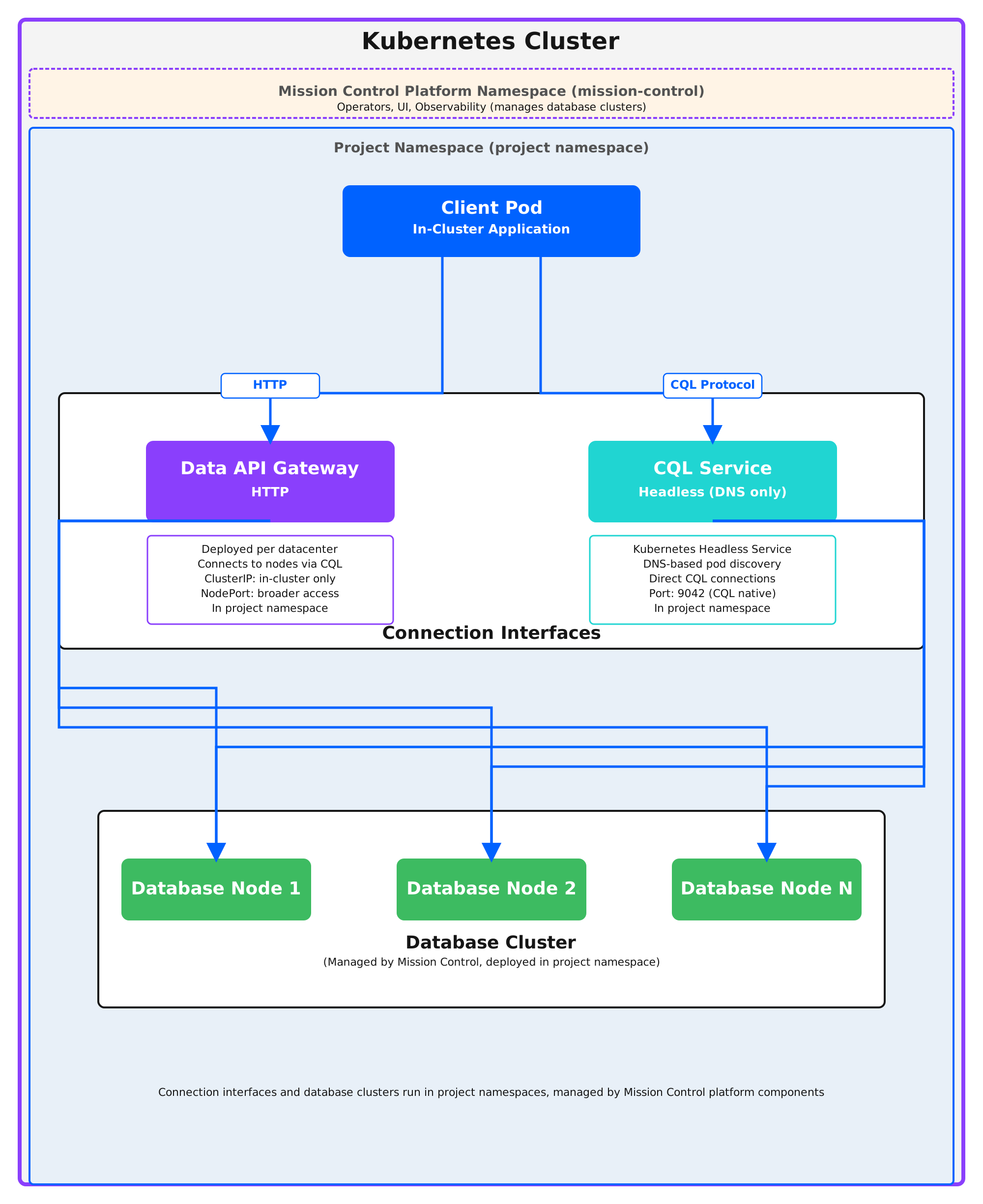
The diagram illustrates the two connection interfaces available for in-cluster applications:
-
Data API Gateway: HTTP API deployed per datacenter, connects to database nodes via CQL protocol
-
CQL Service: Headless Kubernetes service providing DNS-based pod discovery for direct CQL connections
Both interfaces route to the database cluster nodes, which are managed by Mission Control in the project namespace.
The key ports shown in this diagram are:
-
8080 TCP: Data API (optional TLS)
-
9042 TCP: CQL protocol (optional mTLS)
Client database traffic
This diagram shows how applications connect to the database using Data API and CQL and the ports each method uses:
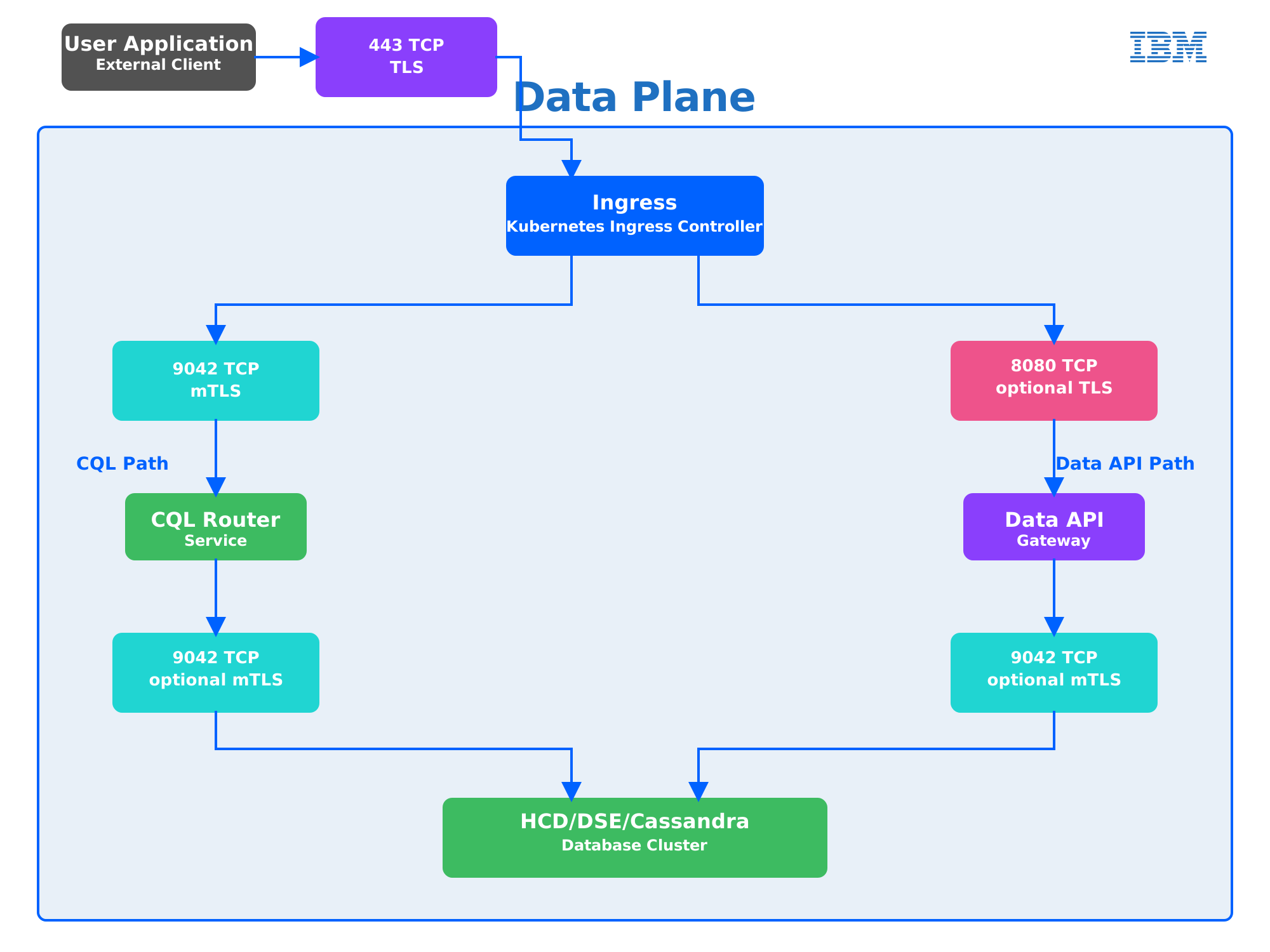
The diagram illustrates two primary connection paths:
-
Data API path: Applications connect to the Data API Gateway on port 8080 (with optional TLS), which then communicates with the database using CQL on port 9042
-
CQL direct path: Applications connect directly to the CQL Service on port 9042 (with optional mTLS), which routes traffic to database nodes
The key ports shown in this diagram are:
-
8080 TCP: Data API (optional TLS)
-
9042 TCP: CQL protocol (optional mTLS)
Management traffic
This diagram shows how operators manage the database cluster through the Kubernetes API and the ports they use:
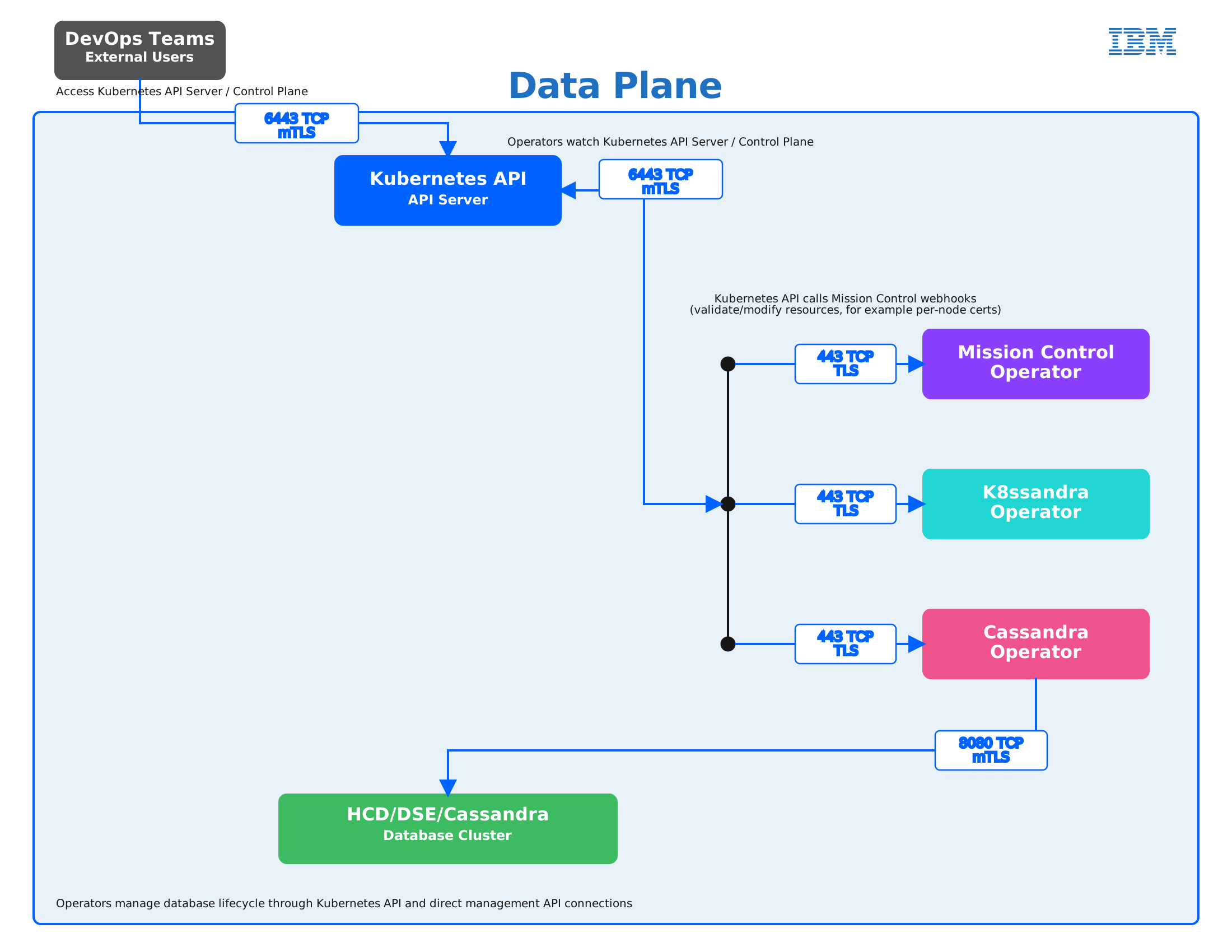
The diagram shows the management control flow:
-
DevOps teams access the Kubernetes API on port 6443 (mTLS)
-
Three operators (Mission Control, K8ssandra, and Cassandra) receive instructions from the Kubernetes API on port 443 (TLS)
-
Operators communicate with database nodes using the Management API on port 8080 (mTLS)
The key ports shown in this diagram are:
-
6443 TCP mTLS: Kubernetes API access
-
8080 TCP: Management API (mTLS)
Observability traffic
This diagram shows how Mission Control collects and routes observability data across the Control Plane and Data Plane, including the ports for metrics and logs:
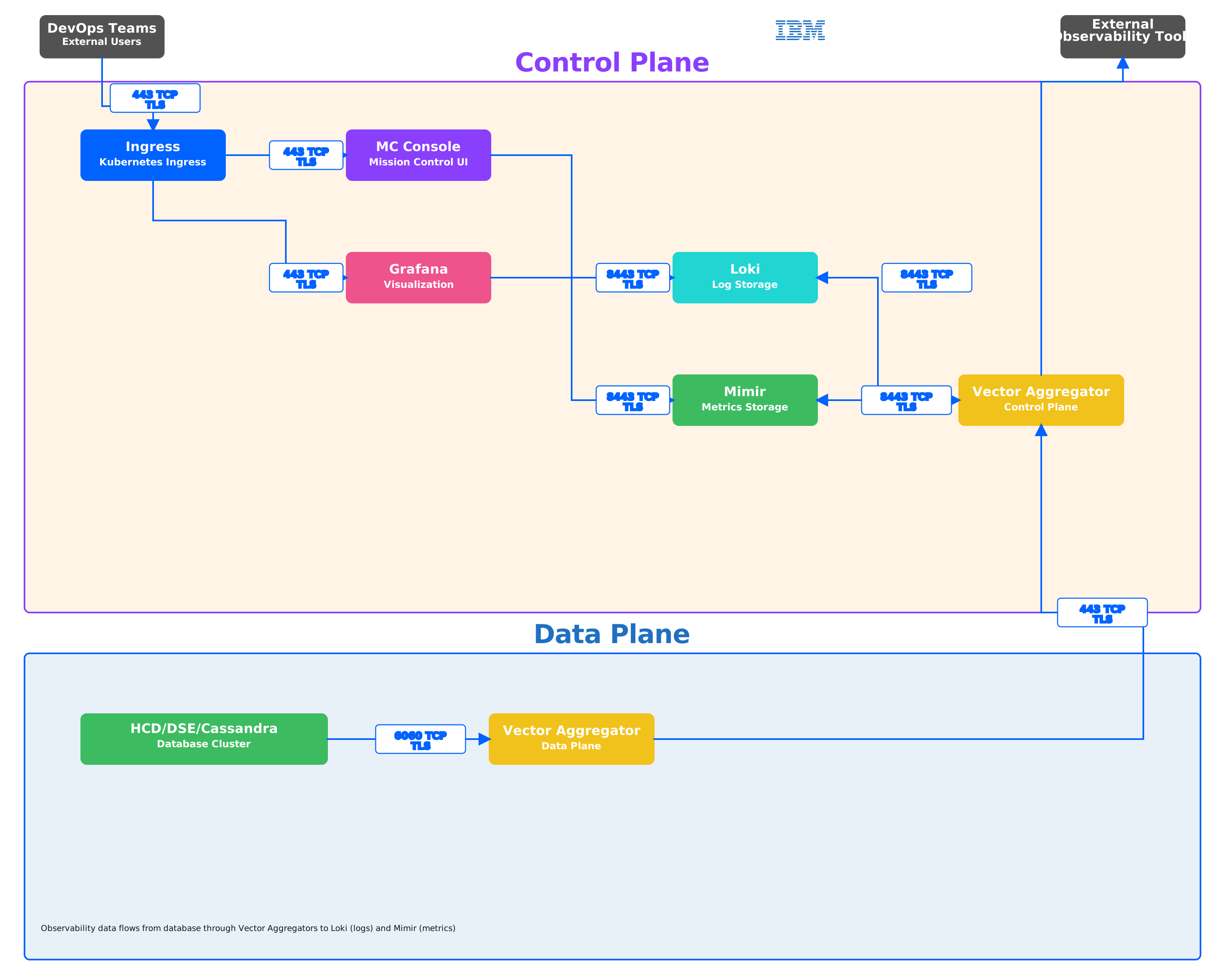
The diagram illustrates the observability data flow:
-
Data Plane collection: Database nodes send metrics to the Data Plane Vector Aggregator on port 6060 (TLS)
-
Cross-plane communication: The Data Plane Vector Aggregator forwards data to the Control Plane Vector Aggregator on port 443 (TLS)
-
Control Plane processing: The Control Plane Vector Aggregator distributes data to Loki (logs) and Mimir (metrics) on port 8443 (TLS)
-
Visualization: DevOps teams access the Mission Control UI and Grafana through Ingress on port 443 (TLS)
The key ports shown in this diagram are:
-
6060 TCP TLS: Database metrics collection
-
8443 TCP TLS: Observability internal communication
Security recommendations
The following recommendations help protect data in transit and prevent unauthorized access to your Mission Control database clusters.
Enable TLS encryption
Use TLS encryption for all communication channels to protect data in transit.
| Internode encryption |
Mission Control automatically handles internode encryption. Mission Control automatically manages internode encryption certificates, including generation, renewal, signing, and keystore/truststore configuration for each node. For more information, see Internode encryption. |
| Client-to-node encryption |
Manually generate keystore and truststore files and store them as Kubernetes secrets. Mission Control does not orchestrate client-to-node encryption. Enable TLS for both the CQL protocol and Data API connections to prevent unauthorized access and data interception. |
Configure client-to-node encryption
Enable client-to-node encryption to protect data in transit between clients and database nodes. Mission Control requires manual configuration of keystore and truststore files that you store as Kubernetes secrets.
The configuration process includes:
-
Generate keystore and truststore files for client-to-node certificates.
-
Create a Kubernetes secret that contains the keystore, truststore, and their passwords.
-
Reference the secret in the
MissionControlClusterspec usingclientEncryptionStores. -
Configure
client_encryption_optionsin thecassandraYamlsection withenabled: true. -
Optional: Set
require_client_auth: truefor mutual TLS authentication.
For a complete client-to-node encryption configuration example with kubectl commands and YAML, see Client-to-node encryption.
Use service discovery
Use Kubernetes internal DNS for automatic service discovery instead of hardcoding IP addresses. Service discovery provides resilience against pod restarts and scaling operations.
Use fully qualified domain names (FQDNs) in the format SERVICE_NAME.PROJECT_SLUG.svc.cluster.local for reliable connectivity.
Service name patterns follow specific formats:
-
CQL Service:
CLUSTER_NAME-DATACENTER_NAME-service.PROJECT_SLUG.svc.cluster.local -
Data API (ClusterIP):
CLUSTER_NAME-DATACENTER_NAME-data-api-cip.PROJECT_SLUG.svc.cluster.local
For programmatic service discovery examples using the Kubernetes API, see the service discovery patterns in your application framework documentation.
Troubleshooting
Follow these troubleshooting steps to diagnose and resolve common communication issues.
Connection failures
Network, DNS, or service configuration issues typically cause connection failures.
Verify network connectivity between your pod and database nodes:
kubectl exec -it POD_NAME -n PROJECT_SLUG -- telnet SERVICE_NAME 9042Replace the following:
-
POD_NAME: The pod name -
PROJECT_SLUG: The project slug (namespace).You can find the project slug in the Mission Control UI breadcrumbs next to the cluster name on the cluster details page.
-
SERVICE_NAME: Your database service name.
Check that service endpoints exist and are healthy:
kubectl get endpoints SERVICE_NAME -n PROJECT_SLUGReplace the following:
-
SERVICE_NAME: The database service name. -
PROJECT_SLUG: The project slug (namespace).You can find the project slug in the Mission Control UI breadcrumbs next to the cluster name on the cluster details page.
This command shows the pod IPs that the service routes to. If the command lists no endpoints, the service cannot route traffic to database nodes.
Review pod logs to identify connection errors:
kubectl logs POD_NAME -n PROJECT_SLUGReplace the following:
-
POD_NAME: The pod name. -
PROJECT_SLUG: The project slug (namespace).You can find the project slug in the Mission Control UI breadcrumbs next to the cluster name on the cluster details page.
Review database node logs for connection attempts:
kubectl logs DATABASE_POD_NAME -n PROJECT_SLUGReplace the following:
-
DATABASE_POD_NAME: The database pod name. -
PROJECT_SLUG: The project slug (namespace).You can find the project slug in the Mission Control UI breadcrumbs next to the cluster name on the cluster details page.
Check that firewall rules and Kubernetes network policies allow traffic on the required ports (9042 for CQL, the port you configured for Data API).
Authentication errors
When you experience authentication errors, do the following:
-
Retrieve the superuser credentials from the Kubernetes secret and verify they match the values you’re using.
-
Check that credentials have not expired and that you have not rotated them without updating your configuration.
-
Review Kubernetes secret access permissions:
kubectl auth can-i get secrets --as=system:serviceaccount:PROJECT_SLUG:SERVICE_ACCOUNT_NAMEReplace the following:
-
PROJECT_SLUG: The project slug (namespace). -
SERVICE_ACCOUNT_NAME: The service account your application uses.
-
-
Verify TLS certificate validity if using client-to-node encryption:
openssl x509 -in /path/to/certificate.crt -noout -dates
Confirm that the service account has the necessary permissions to access the required Kubernetes secrets. Ensure certificates have not expired and that you properly configured trust chains.
Tune connection pool configuration
Configure connection pools appropriately for your workload to balance performance and resource usage.
Start with two to four connections per host for pool size and adjust based on workload. Maintain minimum core connections for low-latency operations.
Set maximum connections based on application concurrency and database capacity. Configure idle timeout to release unused connections, typically 30-60 seconds.
- Python driver example
-
from cassandra.cluster import Cluster, EXEC_PROFILE_DEFAULT from cassandra.policies import DCAwareRoundRobinPolicy from cassandra import ConsistencyLevel cluster = Cluster( [service_name], port=9042, auth_provider=auth_provider, # Connection pool settings protocol_version=4, # Load balancing policy load_balancing_policy=DCAwareRoundRobinPolicy(local_dc='dc1'), # Connection pool configuration connect_timeout=10, # Per-host connection pool settings # Newer drivers set these via execution profiles ) # Create execution profile with connection settings profile = cluster.profile_manager.create_execution_profile( EXEC_PROFILE_DEFAULT, consistency_level=ConsistencyLevel.LOCAL_QUORUM, request_timeout=30 ) session = cluster.connect(execution_profile=profile) - Java driver example
-
import com.datastax.oss.driver.api.core.CqlSession;
import com.datastax.oss.driver.api.core.config.DriverConfigLoader;
import com.datastax.oss.driver.api.core.config.TypedDriverOption;

DriverConfigLoader configLoader = DriverConfigLoader.programmaticBuilder()
    // Connection pool settings
    .withInt(TypedDriverOption.CONNECTION_POOL_LOCAL_SIZE, 4)
    .withInt(TypedDriverOption.CONNECTION_POOL_REMOTE_SIZE, 2)
    .withInt(TypedDriverOption.CONNECTION_MAX_REQUESTS, 1024)
    .withDuration(TypedDriverOption.REQUEST_TIMEOUT, Duration.ofSeconds(30))
    .withInt(TypedDriverOption.REQUEST_WARN_IF_SET_KEYSpace, 1)
    .build();

CqlSession session = CqlSession.builder()
    .addContactPoint(new InetSocketAddress(serviceName, 9042))
    .withAuthProvider(authProvider)
    .withLocalDatacenter("dc1")
    .withConfigLoader(configLoader)
    .build();
Monitor connection pool usage
Check active connections to database nodes:
kubectl exec -it DATABASE_POD_NAME -n PROJECT_SLUG -- \
  nodetool tpstats | grep -E "Active|Pending"
Replace the following:
-
DATABASE_POD_NAME: The database pod name -
PROJECT_SLUG: The project slug (namespace)You can find the project slug in the Mission Control UI breadcrumbs next to the cluster name on the cluster details page.
Most drivers expose connection pool metrics through JMX or metrics APIs. Monitor these metrics from your application to track connection pool utilization.
For more information, see the following:
Measure network latency
Test basic connectivity between pods and database nodes:
kubectl exec -it POD_NAME -n PROJECT_SLUG -- ping -c 5 DATABASE_SERVICE_NAME.PROJECT_SLUG.svc.cluster.localReplace the following:
-
POD_NAME: The pod name. -
PROJECT_SLUG: The project slug (namespace).You can find the project slug in the Mission Control UI breadcrumbs next to the cluster name on the cluster details page.
-
DATABASE_SERVICE_NAME: Your database service name
Test CQL port connectivity:
kubectl exec -it POD_NAME -n PROJECT_SLUG -- \
  nc -zv DATABASE_SERVICE_NAME.PROJECT_SLUG.svc.cluster.local 9042
Replace the following:
-
POD_NAME: The pod name. -
PROJECT_SLUG: The project slug (namespace).You can find the project slug in the Mission Control UI breadcrumbs next to the cluster name on the cluster details page.
-
DATABASE_SERVICE_NAME: The database service name.
Monitor resource usage
Monitor resource usage on database nodes:
kubectl top pods -l cassandra.datastax.com/cluster=CLUSTER_NAME -n PROJECT_SLUGReplace the following:
-
CLUSTER_NAME: The cluster name. -
PROJECT_SLUG: The project slug (namespace).You can find the project slug in the Mission Control UI breadcrumbs next to the cluster name on the cluster details page.
View detailed resource metrics:
kubectl get pods -l cassandra.datastax.com/cluster=CLUSTER_NAME -n PROJECT_SLUG -o jsonpath='{.items[*].spec.containers[*].resources}'Replace the following:
-
CLUSTER_NAME: The cluster name. -
PROJECT_SLUG: The project slug (namespace).You can find the project slug in the Mission Control UI breadcrumbs next to the cluster name on the cluster details page.
Optimize queries
To identify and resolve query performance issues, do the following:
-
Analyze query patterns and execution times to identify slow or inefficient queries.
-
Use CQL tracing and query logging to understand query performance characteristics.
-
Implement the following optimizations to improve performance:
-
Query result caching
-
Prepared statements
