Create a notebook in DataStax Studio
After you install DataStax Studio, you can create connections to your clusters and build notebooks.
Notebooks provide an intuitive interface for developers and analysts to collaborate by mixing code, documentation, and visualizations for query results. A notebook consists of the following:
-
One or more cells with executable code and explanatory text.
-
A web browser user interface combined with a connection to your DataStax Enterprise (DSE) cluster.
-
Inputs and outputs of an interactive session and descriptive text that accompanies the code.
Create your first notebook
-
Start DataStax Studio if it isn’t already running.
-
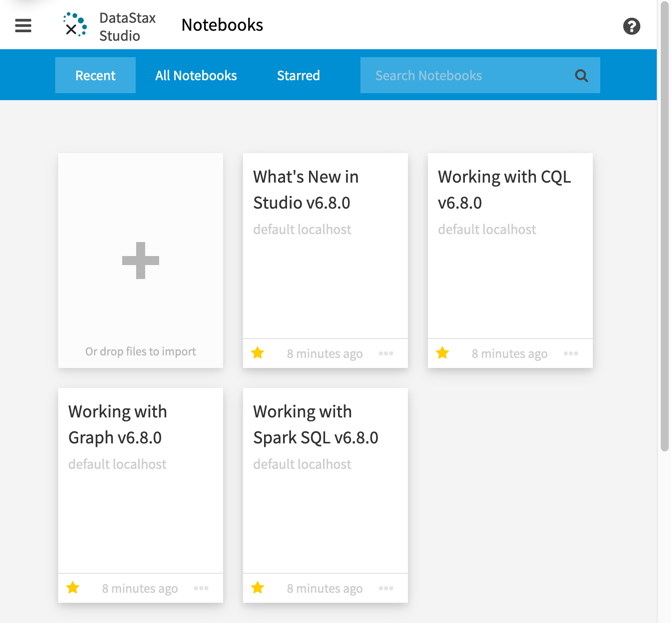
On the Notebooks page, click Add Notebook.
-
Enter a name for the notebook.
-
For remote connections or authenticated connections, click Add New Connection, and then create a connection.
Once you create a connection, you can use that connection for all of your notebooks, and you can switch connections as needed. The connection automatically populates if you have only one connection available. The default connection is to the local node without authentication.
-
Click Create to create your notebook.
Initially, the notebook has a single empty cell in CQL edit mode. You can change the cell’s language to Gremlin, Spark SQL, or Markdown.
-
In the default cell, use the Keyspace setting to set the context for your CQL statements.
For more information, see USE statements and keyspace selection in DataStax Studio.
-
Enter the following code in the cell:
DESCRIBE TABLES;
SELECT * FROM TABLE_NAME;
Replace
TABLE_NAMEwith the name of a table in your keyspace. -
Click Run Cell to run the command.
-
Click Add Cell to add another cell to the notebook.
-
Set the Language to Markdown.
-
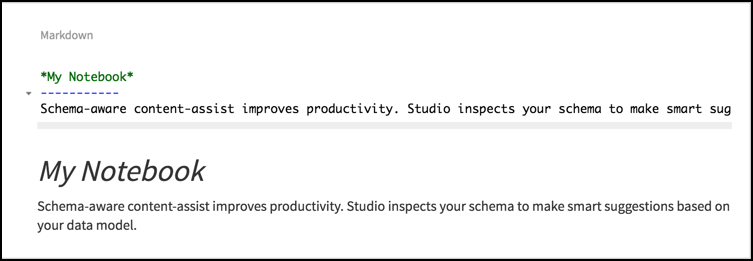
Add some Markdown-formatted text to the cell, for example:
My Notebook ----------- Schema-aware content-assist improves productivity. Studio inspects your schema to make smart suggestions based on your data model. When you work with properties of a person, then you'll see suggestions for name and date_of_birth. -
Click Run Cell to render the text.
-
Continue creating cells to populate your notebook with code snippets and text.
Use Cassandra Query Language (CQL) in DataStax Studio
Interact with data in a DSE cluster by writing and executing CQL code in a notebook.
CQL tutorial notebook
To help you get started, your DataStax Studio installation includes tutorial notebooks. The Working with CQL notebook provides a hands-on tutorial to create and interact with data in a DSE cluster by writing and executing Cassandra Query Language (CQL) code in a notebook. Use this notebook to learn about the following:
-
Intelligent editor features for CQL cells.
-
Viewing the CQL schema with
DESCRIBEcommands. -
Use CQL templates and schema-aware content assist to help you form valid CQL statements.
Content assist can propose valid CQL keywords, table names, and column names, depending on which elements are appropriate to reference in a given context.
-
Use syntax validation and domain validation.
-
View and download results as tables (CSV), charts, or JSON.
USE statements and keyspace selection in DataStax Studio
To select a keyspace, use the Keyspace menu, or specify the CQL USE statement.
The following rules apply to USE statements in DataStax Studio:
-
The keyspace selected in the Keyspace menu applies only to the current cell.
-
The selected keyspace is copied to any new cells that you create below an existing CQL cell.
-
USEstatements apply only to the current cell. -
A
USEstatement overrides the default keyspace setting for all statements that follow theUSEstatement within that cell. -
If a default keyspace isn’t selected from the Keyspace menu, and there are no
USEstatements in the cell, then all statements must be fully qualified to include the desired keyspace.
Use Graph in DataStax Studio
Graph databases are useful for discovering simple and complex relationships between objects. Relationships are fundamental to how objects interact with one another and their environment. Graph databases perfectly represent the relationships between objects.
Using DSE Graph in DataStax Studio provides an interactive way to do the following:
-
Compose Gremlin traversals and view results in multiple dynamic views such as JSON, table, charts, and graph.
-
Leverage DataStax Studio’s schema view and schema-aware content-assist for rapid Gremlin Traversal development.
-
Manipulate the graph view with interactive graph graph features that can expand vertex neighborhoods and remove vertices and edges from view.
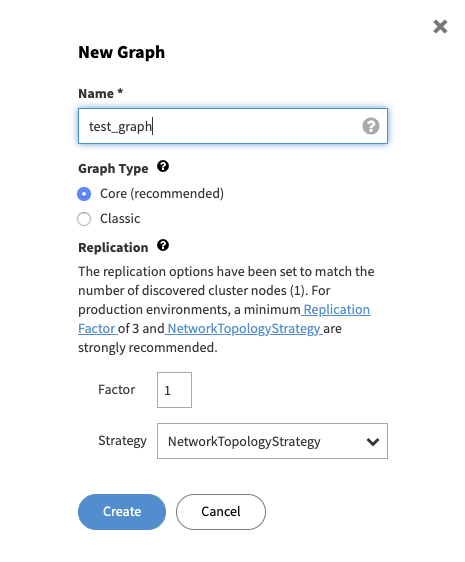
DataStax Graph 6.8 and DataStax Studio can work with two graph engines, Core and Classic. Classic is the graph type of DSE Graph 6.7 and earlier, while Core is a new graph type for DataStax Graph 6.8. DataStax Studio can create graphs using either format. When creating a new graph in DataStax Studio, DataStax recommends using the Core graph type because Classic is included to migrate older graphs to the new Core type.
Graph tutorial notebooks
For an interactive introduction to working with DSE Graph in DataStax Studio, see the DSE Graph notebook tutorials that are installed with DataStax Studio:
- Working with Graph v6.8.0
-
Introduces the DSE Graph-centric features of DataStax Studio and provides a basic introduction to vertices sizes, edge colors, and using interactive graph features:
-
Use display name templates to improve the display names shown in graph view
-
Dynamically view results in multiple views such as JSON, table, charts, and graph
-
Examine a subset of a graph based on an edge label, a set of edge labels, or a set of edges
-
Select vertices and edges, learn about vertices sizes and colors
-
Use full screen
-
Hide the code editor
-
Use content assist and schema-aware content assist for Gremlin code
-
Use schema view to see what is connected and how Learn about charting to visualize data results.
-
Learn how to view help for efficient keyboard shortcuts.
-
- DSE Graph QuickStart v6.8.0
-
Introduction tutorial for using DataStax Studio to learn to insert graph data and run graph traversals. Based on DataStax Graph (available in DSE 6.8 and 6.9) but also works with DSE Graph.
- DSE Graph: CQL as Graph v6.8.0
-
Introduction tutorial for using DataStax Studio to learn about graph-as-CQL. The tutorial provides steps to create a CQL schema, insert data, and run traversals. Only compatible with DataStax Graph in DSE 6.8 and 6.9.
- DSE Graph: CQL Conversion to Graph v6.8.0
-
Introduction tutorial for using DataStax Studio to learn about graph-as-CQL. The tutorial provides steps to create CQL as Graph schema, convert it to Graph schema, insert data, and run traversals. Only compatible with DataStax Graph in DSE 6.8 and 6.9.
About the graph view
The DataStax Studio graph view provides a contextual view of a result by automatically populating the entire sub-graph shared between the result’s vertices and edges. The Gremlin result is examined as follows.
-
If a result contains vertices, then all edges linking those vertices are automatically populated.
-
If a result contains edges, then the adjacent vertices are automatically populated.
-
If the result is a subgraph, then it is displayed as-is.
Path results can contain arbitrary Java objects (not just vertices and edges), so path results aren’t rendered by the graph view.
Interactive graph view
DataStax Studio provides these interactive graph features:
-
Expand vertex neighborhoods, with the ability to filter by edge label
-
Remove vertices and edges from the graph view
Right-click vertices and edges to activate these features.
In a gremlin cell, you can interactively expand the neighborhood in graph view.
Edge population in neighborhood expansion happens in two stages:
-
Adjacent edges and their corresponding other vertices are retrieved.
-
Edges between new vertices and existing vertices may be automatically populated based on the selected Edge Population Strategy.
Neighborhood expansion has the following view options:
-
Populate all common edges, the default complete view.
-
Populate only the edges of the selected labels to expand.
All edges that connect a newly retrieved vertex and an existing vertex are added to the view only if their Edge Label is selected.
-
Don’t auto-populate common edges.
|
At any time, double-click the graph view to recenter the display. |
To learn more about neighborhood expansion, try the Working with Graph v6.8.0 tutorial notebook.
Use Spark SQL in DataStax Studio
You can analyze data stored in DSE clusters with Spark SQL relational queries.
Spark SQL is a unified relational query language for traversing over distributed collections of data, and supports a variation of the SQL language used in relational databases.
Requirements for Spark SQL in DataStax Studio
-
To run AlwaysOn SQL queries in DataStax Studio, the connected cluster must have the Spark SQL Thrift server configured and running.
With AOSS enabled, DataStax Studio uses the JDBC interface to pass queries to DSE Analytics. Two tables,
graphName_verticesandgraphName_edges, are automatically generated in the Spark databasedse_graphfor each graph, wheregraphNameis replaced with the graph used for the DataStax Studio connection assigned to a DataStax Studio notebook. These tables can be queried with common Spark SQL commands directly in DataStax Studio, or can be explored with thedse spark-sqlshell. For more information, see Using Spark SQL to query data. -
Be familiar with the supported syntax of Spark SQL. If you are new to DSE Analytics, see About DSE Analytics.
-
In DataStax Studio, the Spark SQL statements must end in a semicolon (
;). -
DataStax Studio users must have appropriate permissions to run Spark SQL queries. For more information, see Control access to DataStax Studio.
Spark SQL tutorial notebook
The Working with Spark SQL v6.0.0 tutorial notebook introduces techniques and features for working with Spark SQL in DataStax Studio:
-
Interactively perform Spark SQL queries against a DSE cluster
-
Use schema-aware content assist when writing Spark SQL statements.
-
Use syntax validations for faster prototyping.
-
Use schema view for a tree view of schema elements in a database.
