Create a connection in DataStax Studio
Each notebook requires a connection to a running DSE cluster. Commands executed in a notebook are persisted to the connected database.
When editing a notebook, click the connection name (the default is default localhost) in the header to change, edit, and add connections.
You can also manage connections when you create a new notebook, or through the DataStax Studio menu (☰).
Once you create a connection, you can use that connection for multiple notebooks, and you can switch connections as needed. The connection automatically populates if you have only one connection available.
For advanced workloads, make sure you connect your notebooks to compatible clusters:
-
To run Gremlin cells, the connected cluster must have DataStax Graph (core) or DSE Graph (legacy) configured and running.
-
To run AlwaysOn SQL queries in DataStax Studio, the connected cluster must have the AlwaysOn SQL service configured and running.
Create a Mission Control CQL gateway connection
Use the Astra Connection to configure a Mission Control CQL gateway connection:
-
In DataStax Studio, click the menu (☰), and then select Connections.
The existing connections are listed in alphabetical order with the port and host for each connection.
Alternatively, when editing a notebook, click the connection name in the header to manage connections.
-
Click Add New Connection.
-
Click the Astra Connection tab.
-
Enter the connection details:
-
Name: Name of the connection, such as
Mission Control CQL Gateway Notebook Connection -
Secure Connection Bundle path: The absolute path to a local copy of the Mission Control CQL gateway Secure Connect Bundle (SCB).
-
Client ID: A valid database role name.
-
Client Secret: The password for the specified role.
-
-
Click Test to verify the connection.
-
Click Save.
When connecting through a Mission Control CQL gateway from DataStax Studio, client-to-node SSL encryption is configured automatically through the gateway SCB.
Create a standard connection
To add a standard DSE cluster connection, do the following:
-
In DataStax Studio, click the menu (☰), and then select Connections.
The existing connections are listed in alphabetical order with the port and host for each connection.
Alternatively, when editing a notebook, click the connection name in the header to manage connections.
-
Click Add New Connection.
-
Click the Standard Connection tab.
-
Enter the connection details:
-
Name: Name of the connection, such as
DSE Notebook Connection. -
Host/IP (comma delimited): The host names or IP addresses of the DSE cluster to connect to, such as
127.0.0.1. The default islocalhost.You can configure more than one host in a DataStax Studio connection. Hosts initialize the embedded Java driver connection, so more than one host provides redundancy and failover protection. All hosts must be in the same datacenter.
-
Username and Password: For clusters with authentication enabled, provide a valid database role name and password.
-
Port: IP connection port where the Cassandra native transport listens for clients. The default is 9042. This port must be the same as the
native_transport_portin thecassandra.yamlfile.
-
-
Optional: To use client-to-node encryption:
-
DataStax recommends using certificates signed by a CA. The truststore or CA certificate can be shared between all DSE servers and clients.
For DataStax Studio, the public key certificate from the CA must be stored in a local truststore file. If two-way SSL isn’t configured, then the DataStax Studio connection only requires a truststore file. If two-way SSL is configured, then the DataStax Studio connection requires a truststore file and an appropriate keystore file.
DataStax Studio only works with Java 8
.jkskeystores and truststores.To perform server verification, the client needs to have the public key certificate of each node in the cluster stored in a local truststore file. This truststore file is password protected.
-
In your DataStax Studio connection, select Use SSL, and then configure the Truststore and Keystore settings as appropriate for your environment. Enter the local file path and password for the truststore file and, if required, the keystore file.
-
Click Test to verify the connection.
-
Click Save.
Security best practices for DataStax Studio
DataStax Studio includes a web browser client and a DataStax Studio server. Securing DataStax Studio requires protecting the browser client-to-DataStax Studio server connection, and the DataStax Studio server-to-database connection.
- Authentication credentials in DataStax Studio connections
-
To access a database from a notebook, you must create a connection in DataStax Studio. In the connection settings, you provide the necessary authentication credentials for your database. Only create connections to clusters that you use in your notebooks, and use authentication credentials with minimum required permissions for the operations included in your notebooks.
Authentication of DataStax Studio connections to your DSE cluster depends on the cluster’s security configuration.
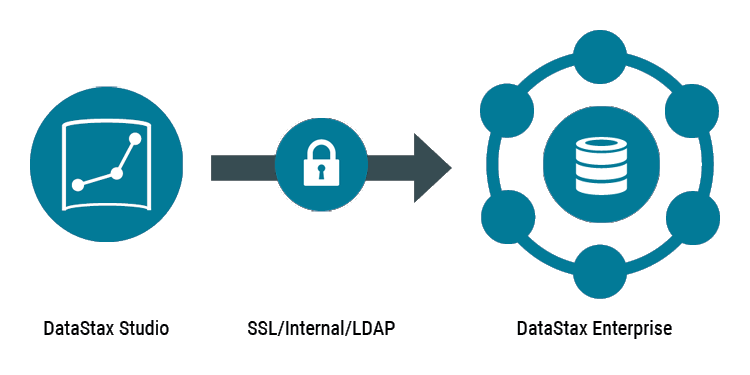
To require authentication for DataStax Studio connections to DSE, configure your DSE cluster as follows:
-
Grant access for required keyspaces and tables
Then, set the authentication credentials in your DataStax Studio connection settings.
- No separation of user access in DataStax Studio
-
DataStax Studio doesn’t provide a multi-user experience, which means that any user that has access to your DataStax Studio instance can use any connection or notebook associated with that instance. When granting any application access to your databases, follow industry standard security best practices to help reduce security risks.
Because DataStax Studio is designed to be a local desktop application, distributed deployment introduces potential security risks. Namely, changing the
httpBindAddressfromlocalhostcan expose your DataStax Studio instance to users on external machines. By extension, these users can access to your DataStax Studio notebooks and access the data in your connected clusters. If you need to share your DataStax Studio instance with multiple users over remote connections, consider the following security recommendations. - Use VPNs and firewalls to protect remote access gateways
-
When centrally deploying DataStax Studio, deploy all DataStax Studio instances behind a VPN.
Secure a centrally deployed instance of DataStax Studio behind a firewall, accessible only through a bastion node. This architecture assumes that only authorized users can remotely access the DataStax Studio machine. The remote desktop gateway enables privileged users to access the DataStax Studio browser client using
localhostas its bind address.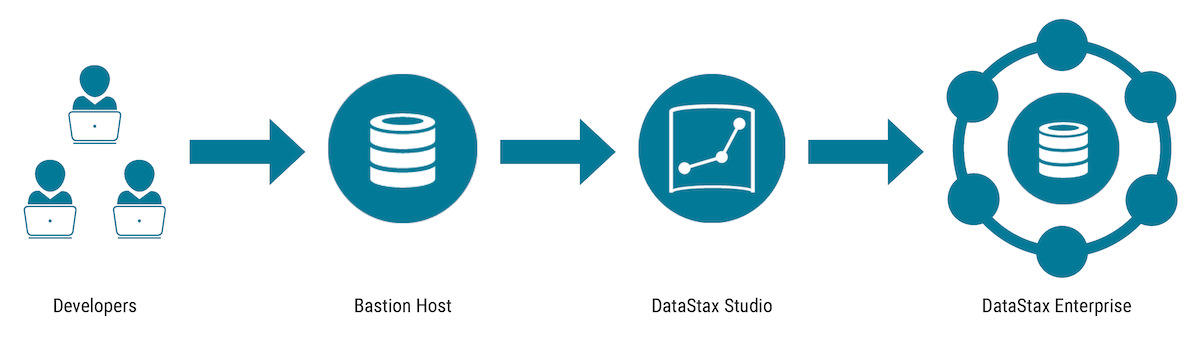
- Use an authentication proxy
-
Enable and protect DataStax Studio server access by using an authentication proxy to access the DataStax Studio browser client, and by using HTTPS for the DataStax Studio browser client.
If you need to set the
httpBindAddressto anything other thanlocalhost, use NGINX as an authentication proxy in front of DataStax Studio to authenticate users to the DataStax Studio browser client. Then, restrict the DataStax Studio browser client port to the local network with firewall rules. Only open the authentication-protected NGINX port to the outside network.Finally, ensure that HTTPS is enabled between the browser client and the DataStax Studio server.
- Restrict User Access
-
For all DataStax Studio installations, only grant access to users who need it:
-
Users who need to see and edit the DataStax Studio notebooks.
-
Users who have permissions to access the databases connected to that DataStax Studio instance.
Because DataStax Studio doesn’t provide user management, you must rely on OS-level user management or other controls to restrict access to DataStax Studio.
-
Ports
DataStax Studio uses the following ports by default when connecting to DSE clusters.
If your cluster uses different ports, you must set the ports accordingly in the DataStax Studio connection settings or configuration.yaml file.
-
CQL native transport: 9042
Set this port when you create a connection to a DSE cluster. It must match the
native_transport_portin your DSE cluster’scassandra.yamlfile. -
Thrift/Spark SQL: 10000
For DSE clusters running AlwaysOn SQL (AOSS), set the
defaultSparkSQLPortin the DataStax Studioconfiguration.yamlfile to the same value as thethrift_portin your cluster’sdse.yamlfile. -
Graph: 8182
The port on a DSE node running a Gremlin Server. For information about setting this port, see
defaultGremlinPortin the DataStax Studioconfiguration.yamlfile.
DataStax recommends securing DSE ports in compliance with your security requirements.
