Install DataStax Studio
DataStax Studio is an interactive, notebook-style developer tool for Cassandra Query Language (CQL), Spark SQL, and DSE Graph.
|
DataStax Studio is in maintenance mode and not actively developed. DataStax Studio doesn’t support the |
This documentation assumes you are using DataStax Studio 6.8. For information about earlier versions of DataStax Studio, see Earlier releases.
DataStax Studio features
- CQL in DataStax Studio
-
Use DataStax Studio to visually create and navigate database objects, create complex queries, and tune CQL queries. The schema helps you visualize the keyspaces in a tree-like view. For an introduction, see Create a notebook in DataStax Studio.
- Advanced workloads in DataStax Studio
-
For DSE Graph, you can use DataStax Studio to explore and view large datasets. The code for DSE Graph is written in the Gremlin graph traversal language and is executed by the Gremlin Server that is a part of the DSE Graph component. The graph schema view helps you visualize the graph organization and connections.
For DSE Analytics, you can write, test, and run Spark SQL queries against DSE clusters.
For an introduction, see Create a notebook in DataStax Studio.
- Other features
-
The intelligent code editor provides syntax highlighting, validation, intelligent code completion, configuration options, and query profiling.
Self-documenting notebooks mix runnable code, documentation (Markdown text), and visualizations for query results. This rich interactive environment provides an intuitive interface for developers and analysts to collaborate and test theories.
Prerequisites
DataStax Studio 6.8 requires the following:
-
OpenJDK 8 or Oracle Java 8 version 1.8.0_151 or later.
-
DSE 6.9, 6.8, or 5.1.
-
A supported web browser.
DataStax Studio is tested on the following platforms (64-bit) with the latest versions of the specified web browsers at the time of the most recent DataStax Studio release:
-
macOS 10.11, 10.12, 10.13: Safari, Chrome, Firefox
-
Microsoft Windows 7, 10: Chrome, Firefox
-
Ubuntu 14.04 LTS, 16.04 LTS: Chrome, Firefox
-
CentOS 7: Chrome, Firefox
-
CentOS 6.8: Firefox
Internet Explorer, Microsoft Edge, and all other browsers, platforms, and versions are either not supported or not tested. They might not be fully compatible.
-
Prepare to upgrade DataStax Studio (optional)
If you are upgrading to DataStax Studio 6.8, back up the user data directory (~/.datastax_studio) before you install a new version.
When you start DataStax Studio after an upgrade, all of your existing notebooks are upgraded to the new version. Notebooks aren’t backward compatible after being upgraded.
Download DataStax Studio
-
Find DataStax Studio on IBM Fix Central:
-
Go to Fix Central.
-
In the Product selector field, begin typing
IBM DataStax Studio, and then select that option from the menu. -
In the Release field, select the version that you want to install.
-
Click Continue.
-
On the Identify fixes page, click Continue to use the default Browse for fixes option.
-
On the Select fixes page, select the fix pack (DataStax Studio version) you want to install, and then click Continue.
Depending on the product and version, more fix packs might be available if you set the Platform filter to All, and then click Submit.
-
If prompted, sign in with your IBMid.
An IBMid account with MFA enabled is required. If you don’t have one, create an IBMid account. If your organization uses Enterprise Federation (EF) for authentication with corporate credentials, see the IBMid EF documentation.
-
On the Download options page, select Download using your browser (HTTPS), and then click Continue.
-
Review the terms and conditions, and then click I agree to activate the download links.
-
-
Click the relevant link to download the DataStax Studio installation file for your operating system.
Install and run DataStax Studio on Linux or macOS
-
Extract the DataStax Studio archive:
tar -xzf datastax-studio-VERSION.tar.gzReplace
VERSIONwith the version number of the tarball you downloaded, such as6.8.0. -
Change to the DataStax Studio installation directory:
cd installation_location/datastax-studio-VERSION -
Run the DataStax Studio Server shell script:
./bin/server.shAlternatively, to start DataStax Studio in the background, run the following command:
./bin/server.sh &When the server starts, the URL is printed in the terminal:
Studio is now running at: http://127.0.0.1:9091The URL depends on your cluster configuration. For example, for DSE running on localhost, the URL is
localhost:port. For remote clusters, the URL uses the hostname or IP address of the remote machine. -
In a web browser, navigate to the URL where DataStax Studio is running to access the DataStax Studio UI.
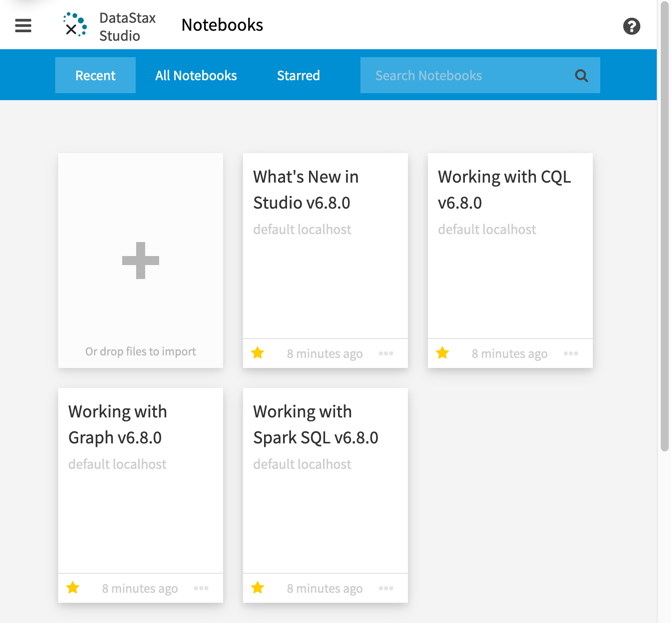
Install and run DataStax Studio on Windows
-
Extract the DataStax Studio archive:
-
In File Explorer, locate your DataStax Studio archive, such as
~\datastax-studio-VERSION.zipwhereVERSIONis the version number you downloaded. -
Right-click the ZIP file, and then select Extract All….
-
-
Change to the DataStax Studio installation directory:
C:/> cd installation_location\datastax-studio-VERSION\bin\ -
Run the DataStax Studio Server shell script:
C:/> server.batWhen the server starts, the URL is printed in the terminal:
Studio is now running at: http://127.0.0.1:9091The URL depends on your cluster configuration. For example, for DSE running on localhost, the URL is
localhost:port. For remote clusters, the URL uses the hostname or IP address of the remote machine. -
In a web browser, navigate to the URL where DataStax Studio is running to access the DataStax Studio UI.
Run a DataStax Studio container
To run a DataStax Studio container in concert with a DSE container, do the following:
-
Install Docker Engine.
-
Adjust hardware resources and system settings to support the containers that you want to run, as explained in Recommended settings for DataStax Enterprise (DSE) Docker containers.
-
Download a DataStax Studio container image from Quay.io or use the
docker pullcommand:docker pull datastax/dse-studio:STUDIO_VERSION -
Start a DSE container, if you haven’t done so already.
-
Start a DataStax Studio container that is linked to the DSE container on the same host, specifying the DSE and DataStax Studio container names:
docker run -e DS_LICENSE=accept \
  -p 9091:9091 --link DSE_CONTAINER_NAME --name STUDIO_CONTAINER_NAME \
  -d datastax/dse-studio
For a list of required arguments and common options for DataStax containers, see Options for
docker runanddocker compose. -
In your browser, navigate to
http://CONTAINER_HOST_IP:9091, whereCONTAINER_HOST_IPis the IP address of the host machine where your DataStax Studio container is running. -
In DataStax Studio, create a connection using your DSE container name as the hostname.
For information about managing the container and DataStax Studio configuration, including custom images and mounted volumes, see Configure DataStax Enterprise (DSE) Docker containers.
Stop DataStax Studio
To stop DataStax Studio on Linux or macOS, run pkill -f studio.
To stop DataStax Studio on Windows, press Control+C in your terminal to end the running process.
Restart DataStax Studio
To restart DataStax Studio, navigate to the DataStax Studio installation directory, and then rerun the server script, as described in Install and run DataStax Studio on Linux or macOS and Install and run DataStax Studio on Windows.
