Collect and store metrics data
DSE OpsCenter creates an OpsCenter keyspace for storing collected metrics.
By default, this keyspace exists on the cluster that is managed by OpsCenter.
Optionally, you can configure OpsCenter to store this data on a separate cluster.
By design, the tables in the OpsCenter keyspace grow over time.
To prevent unbounded growth and control consumption of disk space, you can configure the data expiration for historical metrics data.
You can also choose to exclude certain keyspaces and tables from metrics collection.
Change the replication strategy for the OpsCenter keyspace
When running OpsCenter in a multi-datacenter environment, DataStax recommends that you use the NetworkTopologyStrategy replication strategy for the OpsCenter keyspace.
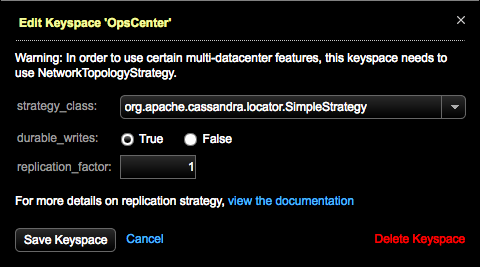
If the OpsCenter keyspace is using the SimpleStrategy, OpsCenter shows a warning message prompting you to use the NetworkTopologyStrategy.
-
If the
OpsCenterkeyspace warning is visible in OpsCenter, expand the warning, and then click Edit the keyspace here.
-
Change strategy_class from SimpleStrategy to NetworkTopologyStrategy.
-
Enter the datacenters and the replication factor for each datacenter.
For more information, see Edit a keyspace.
-
Recommended: Set durable_writes to True.
The default is False.
If durable writes are disabled, data written to the
OpsCenterkeyspace bypasses the commit log. This can result in data loss if a node fails before the data is flushed to disk. -
Click Save Keyspace.
Exclude keyspaces and tables from metrics data collection
By default, OpsCenter doesn’t collect performance data for its own keyspace or the database’s system keyspace.
To exclude other keyspaces and tables from metrics collection, edit the appropriate configuration file based on the exclusion scope:
-
Global exclusions for an entire DSE cluster: Edit the
[cassandra_metrics]section of theCLUSTER_NAME.conffile. -
Node-specific exclusions: Edit each agent’s
address.yamlfile.
Use the following properties to configure exclusions:
CLUSTER_NAME.conf property |
address.yaml property |
Description |
|---|---|---|
|
|
A comma-separated list of keyspace names to exclude from metrics collection. DataStax recommends appending your exclusions to the default exclusions unless you have a specific reason to monitor the |
|
|
A comma-separated list of tables to exclude from metrics collection.
Each entry must include the keyspace name and table name in the form of |
|
|
A comma-separated list of DSE Search Solr cores to exclude from metrics collection in the form of |
The following example sets global exclusions for the keyspace test and the table Keyspace1.Standard1, in addition to the default exclusions:
[cassandra_metrics]
ignored_keyspaces = system, OpsCenter, test
ignored_column_families = Keyspace1.Standard1
Restart OpsCenter after editing these properties.
Expire metrics data
In the [cassandra_metrics] section of the CLUSTER_NAME.conf file, the *_ttl properties control the time-to-live (TTL) for raw metrics data stored in the OpsCenter keyspace.
These TTL values are separate from the expiration for rollup tables.
By default, shorter intervals have smaller TTL values because data accumulates more rapidly and must be expired quickly to avoid overwhelming the available storage.
| Property | Description | Default |
|---|---|---|
|
The TTL in seconds for data collected at one-minute intervals. |
|
|
The TTL in seconds for data collected at five-minute intervals. |
|
|
The TTL in seconds for data collected at two-hour intervals. |
|
|
The TTL in seconds for data collected at twenty-four-hour intervals. |
|
The following example decreases the TTL for one-minute and five-minute intervals, and it disables expiration for two-hour and twenty-four-hour intervals:
[cassandra_metrics]
1min_ttl = 302400
5min_ttl = 1209600
2hr_ttl = 0
24hr_ttl = 0
Restart OpsCenter after editing these properties.
The new TTL values apply to data collected after restarting OpsCenter.
All existing data retains the TTL that was in effect when the data was written to the OpsCenter keyspace.
Expire rollup tables
OpsCenter rollup tables store the metrics that are shown in the OpsCenter Monitoring graphs.
Each rollup table collects data for the period identified in the rollup table name.
For example, the rollups60 table stores an average or aggregate data point for a 60-second window.
The rollup tables are stored in the OpsCenter keyspace.
Rollup tables have separate time-to-live (TTL) settings from other metrics data in the OpsCenter keyspace.
You can configure rollup TTL values in two ways:
-
Global rollup TTL values for an entire DSE cluster: Edit the
[agent_config]section of theCLUSTER_NAME.conffile. -
Node-specific TTL values: Edit each agent’s
address.yamlfile.
Use the following properties to configure rollup TTL values:
| Property | Description | Default |
|---|---|---|
|
TTL for data points stored in rollup states before data is collected in the |
|
|
TTL for 1-minute rollups written to the |
|
|
TTL for 5-minute rollups written to the |
|
|
TTL for 2-hour rollups written to the |
|
|
TTL for 24-hour rollups written to the |
|
Restart OpsCenter after editing these properties.
The new TTL values apply to rollups written after restarting OpsCenter.
All existing rollups retain the TTL that was in effect when the data was written to the rollups* tables.
Use a separate storage cluster
By default, OpsCenter stores its data on the monitored DSE cluster. Alternatively, you can use a separate DSE cluster for OpsCenter data. This additional cluster is referred to as the storage cluster. A separate storage cluster prevents OpsCenter metrics data from consuming storage space and disk I/O alongside your database workloads.
|
DataStax strongly recommends using a separate storage cluster for production deployments. |
To support a separate storage cluster, the DataStax Agent maintains two cluster connections: one for the monitored cluster and one for the storage cluster. When using separate clusters, the agent checks the health of the monitored cluster on one connection, and it writes metrics data to the storage cluster on the other connection. When using a single cluster, both connection pools point to the same DSE cluster instance.
TLS/SSL and authenticated connections are supported with separate clusters, and you can specify different connection details for each cluster in the cluster and agent configuration files. Earlier versions of OpsCenter required the same authentication mechanism and credentials for both clusters.
If you use Kerberos authentication, the storage cluster’s seed nodes must accept connections without Kerberos authentication. You don’t need to disable Kerberos entirely, but you must configure the cluster to allow a secondary authentication method, such as internal authentication.
Deploy a dedicated storage cluster, and then configure OpsCenter to use it for storing metrics data:
-
Deploy a DSE cluster to use as the storage cluster.
Unless you want to use OpsCenter to manage and monitor your storage cluster, don’t install the DataStax Agent on the storage cluster’s nodes. Managing and monitoring the storage cluster with OpsCenter is optional.
-
Edit the monitored cluster’s
CLUSTER_NAME.conffile, and then find or add a[storage_cassandra]section. -
For the
keyspaceoption, enter a unique name for theOpsCenterkeyspace that will be created on the storage cluster for this monitored cluster.For each monitored cluster, the
[storage_cassandra] keyspacevalue must be a unique name that differentiates it from the originalOpsCenterkeyspace on the monitored cluster and otherOpsCenterkeyspaces on the same storage cluster. For example, use the name of the monitored cluster as a suffix for theOpsCenterkeyspace name, such asOpsCenter_Cluster1Storage.Don’t use the default name
OpsCenteror any reserved keyspace names, such assystem.[storage_cassandra] keyspace = OpsCenter_Cluster1Storage -
In the
[storage_cassandra]section, define the storage cluster connection details.The following examples show some of the options you can use to configure a storage cluster connection. For more options and more information, see Cassandra connection properties for OpsCenter (CLUSTER_NAME.conf).
[storage_cassandra]
username = opscuser # If authentication is enabled on the storage cluster
password = password # If authentication is enabled on the storage cluster
seed_hosts = host1, host2 # Critical for successful connection; agents only connect to specified hosts on the storage cluster
cql_port = 9042 # Storage cluster's native transport port
keyspace = OpsCenter_Cluster1Storage
If the storage cluster and monitored cluster use different credentials, authentication methods, or SSL/TLS connection settings, define all required options for the various connections the
[agents],[storage_cassandra], and[cassandra]sections. The following example uses SSL keystores. Truststore options are also available.# Agent-to-cluster connection for high-level operations # (Agent-specific connections use address.yaml or the [agent_config] section) # Options prefixed by storage_ are for the storage cluster connection # Options without a prefix are for the monitored cluster connection [agents] ssl_keystore = /etc/dse/keystore_monitored ssl_keystore_password = example1 storage_ssl_keystore = /etc/dse/keystore_storage storage_ssl_keystore_password = example2 # Storage cluster connection [storage_cassandra] username = opscuser password = password seed_hosts = host1, host2 cql_port = 9042 keyspace = OpsCenter_Cluster1Storage ssl_keystore = /etc/dse/keystore_storage ssl_keystore_password = example3 # Monitored cluster connection [cassandra] username = baz password = test ssl_keystore = /etc/dse/keystore_monitored ssl_keystore_password = example4 -
If your environment requires unique connection details at the DataStax Agent level (such as an integration with a third-party CMS application), set the required options in each agent’s
address.yamlfile, or in the[agent_config]section of theCLUSTER_NAME.conffile.Options in
CLUSTER_NAME.confapply to all agents in the cluster unless overridden by a different value in an agent’saddress.yamlfile.The following table describes some of the agent-specific cluster connection options. In the following table, the
monitored_prefix denotes options for the monitored cluster connection, and options without a prefix are for the storage cluster connection. However, the prefix convention doesn’t apply to all agent-specific cluster connection options.For more information and more options, see the
address.yamlreference.Monitored cluster connection Storage cluster connection Description monitored_cassandra_portcassandra_portCassandra native transport port for connection to DSE.
monitored_cassandra_usercassandra_userUsername (database role name) to connect to a DSE cluster with authentication enabled.
monitored_cassandra_passcassandra_passPassword to connect to a DSE cluster with authentication enabled.
monitored_ssl_keystoressl_keystoreThe path to the SSL keystore for an SSL-encrypted connection to a DSE cluster.
monitored_ssl_keystore_passwordssl_keystore_passwordThe SSL keystore password for an SSL-encrypted connection to a DSE cluster.
monitored_ssl_truststoressl_truststoreThe path to the SSL truststore for an SSL-encrypted connection to a DSE cluster.
monitored_ssl_truststore_passwordssl_truststore_passwordThe SSL truststore password for an SSL-encrypted connection to a DSE cluster.
-
Save the configuration files.
-
Restart OpsCenter and the agents to apply the changes.
-
Verify that the metrics are being stored on the storage cluster as expected.
For example, use
cqlshto query theOpsCenterkeyspace on the storage cluster. -
After the storage cluster is online and receiving metrics data, decide whether to keep the metrics data from the original
OpsCenterkeyspace on the monitored cluster:- Keep the original
OpsCenterkeyspace data -
If the storage cluster isn’t monitored by OpsCenter, back up the OpsCenter keyspace, take a snapshot of the OpsCenter keyspace, and then load the snapshot into the OpsCenter storage cluster with
sstableloader.If the storage cluster is monitored by OpsCenter, back up the OpsCenter keyspace, and then clone the back up to the OpsCenter storage cluster.
- Discard the original
OpsCenterkeyspace data -
If you use Lifecycle Manager (LCM), remove the duplicate storage cluster shown in LCM. When you configure a separate storage cluster for metrics, the OpsCenter keyspace is re-created on the storage cluster. Because the OpsCenter UUID changes, duplicate clusters are shown in LCM. To remove the duplicate cluster in LCM, resync the OpsCenter cluster UUID.
If you don’t use LCM, delete the original
OpsCenterkeyspace on the monitored cluster.
- Keep the original
-
If you haven’t done so already, change the replication strategy to
NetworkTopologyStrategyfor allOpsCenterkeyspaces on the storage cluster.
Export metrics
In addition to viewing metrics in OpsCenter, you can export metrics data to external monitoring tools:
-
For clusters managed by Lifecycle Manager (LCM), you can use LCM to export metrics.
-
For clusters not managed by LCM, you can export metrics directly from DSE. For more information, see Monitor cluster metrics with DSE Metrics Collector.
