Use the Capacity Service
Using trend analysis and forecasting, the Capacity Service helps you understand how a cluster is performing within its current environment and workload, and gain a better sense of how time affects those trends, both past and future.
Several types of metrics are collected by the Capacity Service, including Cassandra-specific and platform-specific metrics (for example, disk and network metrics), at both the node and table level (where applicable). These metrics are stored in Cassandra on the cluster being managed by default. Optionally, you can store metrics data on a separate cluster.
The Trend Analysis component of the Capacity Service allows viewing historical metrics for any node or table, as well as aggregates across an entire cluster.
Forecast trends for metric graphs
The Forecast feature allows viewing a predicted trend for any metric, based on collected historical data. A predicted trend uses polynomial curve fitting against historical data. By default, the polynomial equation is degree 3.
-
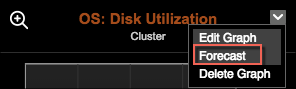
In the Dashboard, locate the metric graph to forecast and click Forecast from the graph menu.
-
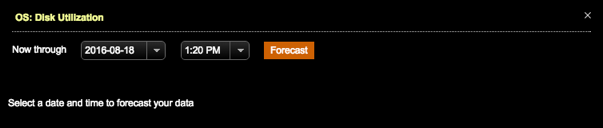
Select the date and time for the end of the predicted trend timeframe.
The end date and time must be a minimum of two days in the future, up to a maximum of one year.
-
Click Forecast.
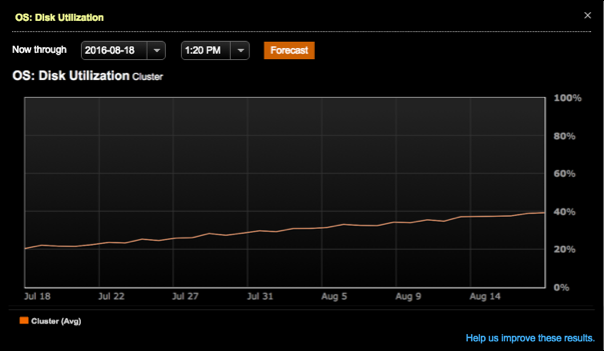
The forecast shows the predicted metric trend for the selected timeframe. The following example shows that node disk usage will double from 20% to 40% in one month. In this case, admins should consider adding capacity now.
-
If you want to help DataStax improve predicted trends in future releases, you can forward your results or comments to DataStax engineers by clicking Help us improve these results.
Enter your name, a valid email address, and any comments about the forecast. If you want to include the forecast data, select Include this forecast data with my feedback.
Advanced forecast configuration
The default forecasting options are configurable by adding a [forecasting] section to the opscenterd.conf file or the cluster_name.conf files.
To edit all clusters at once, edit opscenterd.conf, which is located at /etc/opscenter/opscenterd.conf for package installations, or at INSTALL_DIRECTORY/conf/opscenterd.conf for tarball installations.
To edit a specific cluster, edit the CLUSTER_NAME.conf file located at /etc/opscenter/clusters/ for package installations, or at INSTALL_DIRECTORY/conf/clusters/ for tarball installations.
-
Add a
[forecasting]section with the following available configuration options:-
[forecasting] range_multiplier: The multiplier for the query range needed to produce forecasts. The default multiplier is 3.
-
[forecasting] required_data_percentage: Minimum percent of past data required to forecast. The default value is 0.5.
To generate a meaningful prediction, historical data is analyzed for a longer period than the range being forecasted. The default range multiplier is three times larger than the range being forecasted. For example, to forecast one month into the future, three months of data is analyzed.
The following example decreases the default range multiplier for the forecast timeframe, and decreases the required percentage amount of historical data, which might be necessary for a newer cluster to forecast a trend. If there is not enough data when forecasting, an error indicates less than 50 percent of the required past data was available. After a cluster has more historical data to work with, increasing the forecasting configuration values can increase the accuracy of forecasted trends.
[forecasting]
range_multiplier = 3
required_data_percentage = 0.25
-
-
Save the configuration file or files.
